How to Post Multiple Photos on Instagram a Complete Guide

Learn how to post multiple photos on Instagram using carousels, layouts, and stories. Boost your engagement and storytelling with our practical guide.
Want to post multiple photos on your Instagram feed? The trick is to find the '+' icon, pick your first photo, and then tap the 'Select Multiple' icon—it’s the one that looks like a stack of squares. This little button is your ticket to creating a carousel post with up to 10 photos and videos.
Your Quick Guide to Instagram Carousel Posts
Sometimes one photo just doesn't cut it. That's where carousels come in. They are one of the best ways to tell a bigger story, show off more of your product, or share all those amazing photos from your last trip without overwhelming everyone's feed.
Instead of dropping five separate posts, you can package them into one neat, swipeable experience. Why does this matter? Because when people stop to swipe through your content, they spend more time on your post. Instagram's algorithm sees that extra "dwell time" as a positive signal, often rewarding you with better reach. It's a simple change that makes a big difference.
The Basic Steps to Create a Carousel
Getting started is quite simple once you know the right buttons to press. We'll get into the creative side of things later, but first, you have to nail the mechanics. If you're looking for a deeper dive into design and storytelling, you can check out our complete guide on how to create Instagram carousels.
For now, here’s a quick visual that breaks down the three core taps you need to know.
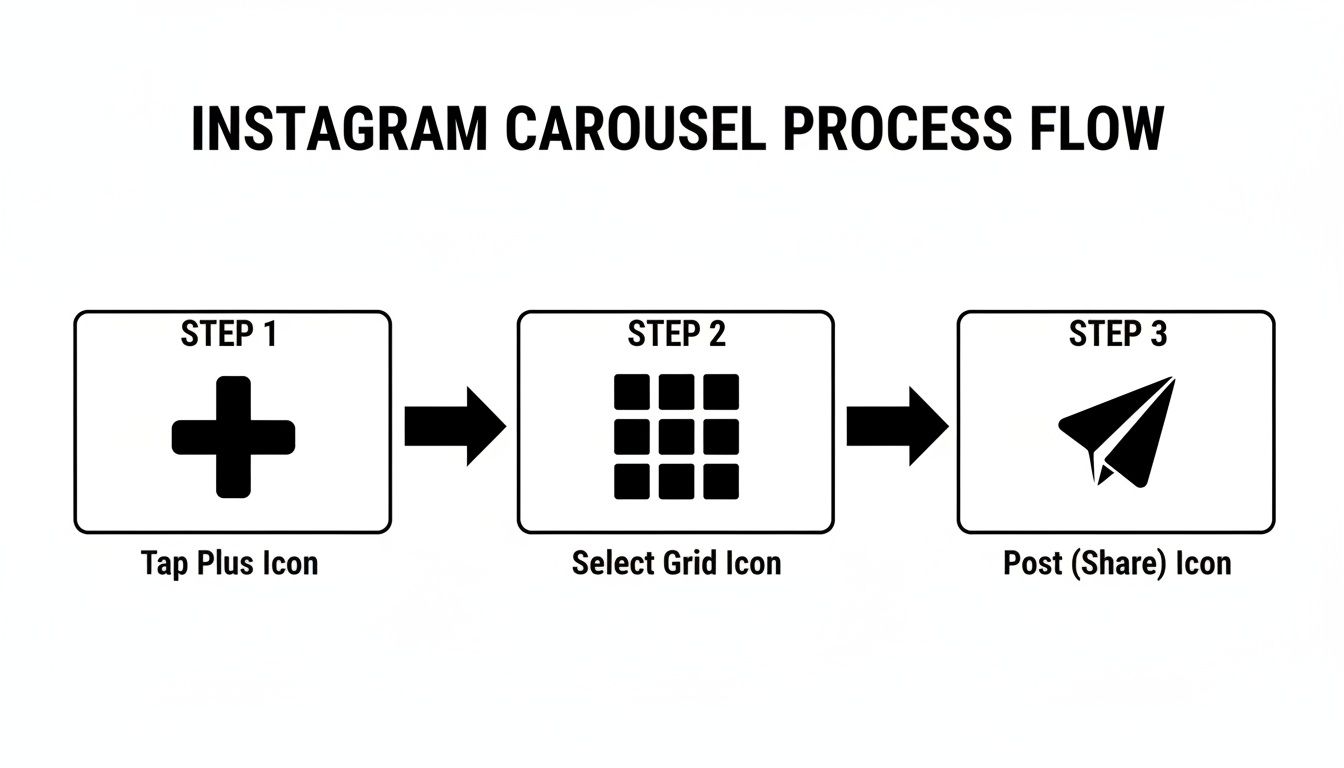
This simple flow is all it takes to get your first multi-photo post live. Think of it as your foundation. Once you've got this down, you can start focusing on the fun stuff, like arranging your images perfectly and applying edits that give your whole carousel a polished, cohesive feel.
To make it even easier, here are the essential steps in a quick table format.
Quick Steps for Creating an Instagram Carousel
This table summarizes the core actions for getting your multi-photo post ready to go.
| Step | Action Required | Key Tip |
|---|---|---|
| 1 | Open Instagram | Tap the '+' icon at the bottom of your screen to start a new post. |
| 2 | Select Multiple | Choose your first photo, then tap the 'Select Multiple' icon. |
| 3 | Choose Your Media | Select up to 10 photos and videos in the order you want them to appear. |
| 4 | Edit and Filter | Apply filters to all images at once or edit each one individually. |
| 5 | Finalize Post | Write your caption, add tags, location, and alt text before hitting 'Share'. |
Master these moves, and you're well on your way to creating engaging carousels that stop the scroll.
Now, let's get into the details. You've seen those slick, multi-photo posts all over your feed and you're ready to make your own. It’s much easier than it looks, and it’s one of the best ways to get people to actually stop scrolling for a second.
Think of this as a step-by-step walkthrough. We'll go from opening the app to hitting that final "Share" button. No confusing jargon, just the straightforward steps to get your first carousel live.
Kicking Off Your Post
First, open your Instagram app. At the bottom, you've got that familiar row of icons. Your starting point is the plus sign (+) in the middle.
Tapping that icon immediately pulls up your phone's camera roll right inside the app. This is your command center for creating any kind of feed post, whether it's a single photo, a video, or the multi-photo masterpiece we're about to build.
Picking Your Shots
This is where the magic happens. Once your gallery is up, find the first photo you want to feature. This will be your cover shot, the one that has to grab attention.
Now, look for an icon that looks like a couple of stacked squares. Sometimes it'll just say 'Select Multiple'. It’s usually located near the bottom-right of the image preview.
Key Takeaway: Hitting that 'Select Multiple' button is the crucial switch. It tells Instagram, "We're not just posting one photo today." Once you tap it, you can pick up to 10 photos and videos for a single carousel post.
As you start tapping your chosen images and clips, you'll see a little numbered circle appear on each one. The first one gets a '1', the second a '2', and so on. Don't worry about the order being perfect right now—you can shuffle them around in a minute.
Arranging and Editing Your Carousel
Got your media selected? Great. Tap 'Next' in the top-right corner. This will land you on the editing screen where you can really start to shape your post.
You have two main ways to approach this:
Go for a Vibe: Along the bottom, you'll see all of Instagram's classic filters. Applying one here affects every single photo in your carousel. It's a fast way to give the whole set a consistent, cohesive look without much effort.
Edit One by One: Want more control? Just tap on a specific photo's thumbnail in the preview strip. This zooms in on that single image, letting you tweak its brightness, contrast, or even apply a totally different filter just to that one slide. Tap it again to go back to the main view.
This flexibility is great for telling a story. Maybe you want that first shot to be super bright and poppy, but the third one needs a more muted, moody feel. It's easily done.
And what about that order you picked earlier? If you look at it and think it's not quite right, just press and hold any thumbnail and drag it to a new spot. This simple drag-and-drop lets you perfect the flow of your carousel before you even think about writing a caption. Get the narrative right here, and you're golden.
Weaving a Story, One Swipe at a Time
Knowing how to post multiple photos is the easy part. The real magic is turning that photo dump into a story that actually hooks people. An effective carousel isn't just a random collection of images; it’s a deliberately crafted experience. The whole point is to make every single swipe feel earned, revealing another piece of the puzzle and keeping your followers engaged from slide one to slide ten.
Think of your carousel like a tiny movie with a clear beginning, middle, and end. Your first image is everything—it's your hook. It has to be strong enough to stop the mindless scroll and make someone want to know what comes next. This could be a breathtaking landscape, a bold question in text, or a close-up detail that hints at a bigger picture.
Building Your Narrative Arc
Once you’ve got them hooked, the middle slides have to deliver. This is your chance to expand on that initial promise. Show off a product from every angle, walk through the steps of a DIY project, or take your followers on a virtual tour. A travel creator might start with an epic shot of a landmark, then use the next few slides to zoom in on architectural details, showcase local food, and share candid street scenes.
The final slide is your grand finale. It needs to provide a satisfying conclusion or a clear call to action. Think a dramatic "before and after," a celebratory group shot, or a simple graphic summarizing the main point.
A well-crafted visual narrative turns passive scrolling into an active experience. By sequencing your photos with intention, you guide your audience's focus and create a post they'll actually remember.
Instagram gives you up to 10 slides for a reason—it was practically built for this kind of storytelling. But just because you can use all ten doesn't mean you should. Most social media professionals agree that the sweet spot for engagement is somewhere between 3-5 slides. It’s just enough content to feel substantial and get people swiping, but not so long that you risk losing their attention.
Storytelling Formulas That Just Work
To really connect with your audience, you need to master a few core visual storytelling techniques. Here are a few battle-tested formulas you can use:
- The "How-To" Guide: Start with the jaw-dropping final product (like a perfectly plated dish). Use the next few slides to break down the key steps, and end with a mouth-watering close-up of the best part.
- The Event Recap: Kick things off with a wide shot to set the scene—think a packed venue or a beautiful setup. The middle slides can highlight key moments, candid interactions, and speaker highlights. Your final slide? A simple "thank you" graphic or an epic group photo.
- The Product Showcase: Open with your product in a cool lifestyle setting. Follow up with slides showing off specific features, the quality of the materials, or different color options. End with a shot of a happy customer actually using it.
When you start thinking like a storyteller instead of just a content creator, you turn a simple Instagram feature into one of your most powerful tools for building a real connection.
You've got the basics down. You know how to select multiple photos and get them into a single post. But just putting a few photos together isn't enough to stop anyone mid-scroll.
If you really want to level up, you need to think beyond a simple photo gallery. It’s time to start creating a cohesive, immersive experience that pulls your audience from one slide to the next.
Design a Seamless Panoramic Post
One of the most effective tricks in the carousel playbook is the seamless panorama. You’ve probably seen these—it’s when a single, wide photo is split perfectly across multiple slides. Swiping through feels like you’re revealing one epic, continuous image.
This technique is a great choice for:
- Epic Landscapes: Got a killer sunset shot? Don't crop it. Let your followers swipe through the entire breathtaking view.
- Group Photos: Finally, a way to post that big group shot without anyone getting shrunk into a tiny face in the corner.
- Product Lineups: Show off a whole collection side-by-side in one clean, uninterrupted frame.
You'll need an app designed to slice photos into perfectly sized squares or rectangles for this. The result is a high-impact post that encourages people to swipe, creating a satisfying interaction that holds their attention.
Mix Photos and Videos for a Richer Story
Why stick to just one format? Your carousels don't have to be photos-only. Instagram lets you mix and match static images with video clips in the same post, and this is where storytelling can become truly dynamic.
Think about it. You could start with a gorgeous photo of a finished meal, follow it up with a quick video of the sizzling pan, and end with a clean graphic of the recipe. That single post just went from a simple picture to a full-blown narrative.
When you combine photos and videos, your carousel stops being a gallery and starts becoming a multi-sensory experience. It keeps things interesting and unpredictable, giving people a real reason to swipe all the way to the end.
Create Custom Collages with the Layout Tool
Sometimes the standard grid just doesn’t cut it. If you want to add a more custom, designed feel to a slide, you can actually borrow a tool from Instagram Stories: the Layout feature. It’s a useful way to build interesting collages right in the app.
Here’s the workaround:
- Open the Instagram Story creator and tap the Layout icon on the side.
- Pick a grid that works for you—there are options for up to six photos.
- Populate the grid with photos from your camera roll.
- Now for the key step: Instead of posting to your Story, hit the three-dot menu up top and tap Save.
That collage is now saved to your phone’s camera roll as a single image. You can then select it as one of the slides for your feed carousel, instantly adding a more polished, professional vibe to your post.
Getting Your Carousel Seen: Nailing the Final Touches
A great carousel post is only half the battle. If no one sees it, it won't have an impact. Now that your photos are lined up perfectly, it’s time to optimize the post so it actually reaches people and gets them to interact.
These small steps might seem like a chore, but they're powerful signals to the Instagram algorithm. Get them right, and you can significantly boost your post's performance.
It all starts with that caption. Don't just describe what's in the photos. Write something that sparks a conversation or gives people a reason to stop scrolling. Ask a question, drop a surprising fact, or tell the story behind the shots. Give your audience a reason to care and, more importantly, to comment.
Writing Captions That Get Engagement
The best captions feel like they’re part of the story, not just an afterthought. Your goal is to get people to slow their scroll, read what you wrote, and then do something—comment, save, or share.
A simple but effective trick is to point people to specific slides. Something like, "Swipe to slide 3 for the before-and-after!" does more than just guide them; it keeps them on your post longer. That extra "dwell time" is a huge positive signal for the Instagram algorithm.
Think of your caption as the final piece of the puzzle. It's your job to connect the dots between the images and give your audience a clear call to action, turning them from passive scrollers into an actual community.
Carousel posts are naturally engaging because they get people swiping. This keeps them interacting with your content far longer than a single image ever could. A well-crafted caption on top of a great carousel is a combination the algorithm favors.
Hashtags and Tags: Your Discovery Engine
Hashtags are how you connect with people who don't already follow you. Think of them as signposts leading new audiences straight to your content. The key is to use a balanced mix.
- Broad Hashtags: Use a couple of popular ones (like #travelphotography or #foodblogger) to jump into massive, ongoing conversations.
- Niche Hashtags: This is where you can find a highly engaged audience. Get specific (like #portlandstreetart or #veganbakingrecipes) to connect with a smaller, but more interested, group.
- Branded Hashtags: If you have a business or a special campaign, create your own unique hashtag to build a community and easily track all the content people create around it.
And don't forget to tag relevant accounts. If you're showing off a product, tag the brand. Snapped a pic at a cool local coffee shop? Tag their business page. This sends them a notification, which can lead to a reshare that puts your post in front of their entire audience. The same goes for adding a location tag—it boosts your visibility for anyone searching that specific place.
Don't Forget Alt Text (It's More Important Than You Think)
Accessibility isn't optional; it's essential. Alternative (alt) text is a simple description of your photos that allows screen readers to explain your content to users with visual impairments.
Taking a few seconds to write descriptive alt text for each slide makes your content inclusive for everyone.
Before you hit "Share," just tap 'Advanced Settings' and then 'Write Alt Text.' Describe exactly what’s in the image, clearly and concisely. This small step doesn't just help people—it also gives Instagram's algorithm more context about your post, which can help it get discovered. For a deeper dive into boosting your performance, check out our guide on how to increase social media engagement.
Automating Your Visual Content Creation
Consistently creating high-quality, multi-slide carousels for Instagram is a major time commitment. If you're running a business or managing clients, the entire process—researching topics, writing copy, and then designing graphics—can feel like a second full-time job. It's the exact kind of authority-building content that grows an audience, but it's also the first thing to be dropped when you get busy.
This is where automation can completely change your workflow.

Tools like Postbae are built to handle this heavy lifting. It's an AI-powered content creation agent that autonomously generates professional visual social media graphics, including multi-slide carousels and listicles, without requiring you to write a single prompt.
How Can AI Help with Visual Content?
Postbae is designed for small business owners and marketing agencies who need to establish their expertise but lack the time for manual content production. The AI automates the entire creation process.
Here’s what that looks like:
- Ideation and Research: It generates industry-specific topics that resonate with your audience, such as tips, tricks, or industry insights.
- Content Writing: The AI agent then writes the text for each individual slide.
- Professional Design: Finally, it arranges that content into proven, professional visual layouts.
This approach puts the creation of educational, authority-building content on autopilot. You get ready-to-use graphics and still have full editing control to customize every detail before you post them. If you're exploring AI-generated social media posts, it’s worth knowing what tools are out there. For automation that goes beyond just creating visuals, check out this guide on using a chatbot for Instagram automation to handle things like DMs and comments.
Common Questions About Multi Photo Posts
Even with the best guide, sometimes Instagram can be uncooperative. Let's run through a few of the most common issues people face when posting multiple photos.
Why Can’t I Select Multiple Photos on Instagram?
This is a classic issue, and 99% of the time, the culprit is a simple one: your app is out of date. Before you do anything else, go to your device's app store and check for an Instagram update. That almost always brings the 'Select Multiple' button back.
If you've updated and you're still stuck, try clearing the app's cache in your phone's settings. A simple phone restart can also sometimes resolve minor software glitches causing the problem.
What Are the Best Image Dimensions for a Carousel?
For the sharpest look, you have two main options: a 1:1 square ratio (1080x1080 pixels) or a 4:5 portrait ratio (1080x1350 pixels). Most creators prefer the 4:5 portrait ratio. It simply takes up more real estate on the screen and feels more immersive when people are scrolling.
Here’s a pro tip: make sure all your photos and videos in the carousel are the same size. If you mix and match, Instagram will crop everything to match the first slide's dimensions, which can lead to awkward framing. Consistency is key.
Can I Edit Each Photo Individually in a Carousel?
You absolutely can. After you've picked your photos, you'll land on the editing screen. When you first tap a filter, Instagram applies it to every slide to keep things looking cohesive, which is a helpful default.
But you have total control. Just tap on any individual photo's thumbnail at the bottom of the screen. This lets you tweak the brightness, contrast, or saturation for just that single image. It’s perfect for when one photo is slightly darker than the others or needs a little extra pop.
Ready to streamline your content creation? Postbae is an AI-powered agent that automatically generates professional, multi-slide visual posts for your social media. It handles the research, writing, and design, so you can focus on growing your business. Learn more about Postbae.