The 12 Best Free Graphic Design Software Options for 2026

Discover the 12 best free graphic design software tools for any project. Compare features, pros, cons, and find the perfect fit for your creative needs.
In a visually-driven market, creating compelling graphics is essential for small businesses, marketers, and creators. Whether you're designing social media posts, building a brand identity, or producing marketing collateral, the right software makes all the difference. While professional tools often come with a high price, a wealth of powerful, best free graphic design software is available, offering everything from simple drag-and-drop editors to sophisticated vector and raster tools.
This guide is designed to cut through the noise. We will break down the top free options, helping you select the perfect software for your specific needs, from quick social media updates to complex illustrations. We will explore key features, ideal use cases, and practical limitations so you can make an informed decision without spending a dime. Each entry includes a direct link and a clear overview to streamline your selection process.
The goal is to move beyond generic feature lists and provide practical insights. We will evaluate tools for specific tasks like creating engaging carousels for Instagram, designing detailed infographics, or crafting scalable vector logos. This resource will also differentiate between manual design platforms, where you control every pixel, and emerging automated solutions which generate professional graphics for you. For those looking to optimize their entire toolkit, exploring other powerful free software alternatives can further reduce operational costs while maintaining quality. Let's find the right tool to bring your creative vision to life.
1. Canva
Canva is arguably the most popular and user-friendly web-based design platform, making it a go-to choice for millions of users worldwide. It has solidified its top spot by offering a powerful and intuitive drag-and-drop editor that empowers anyone, regardless of design skill, to create professional-quality graphics. Its massive library of templates and assets makes it one of the best free graphic design software options for producing polished visuals quickly.
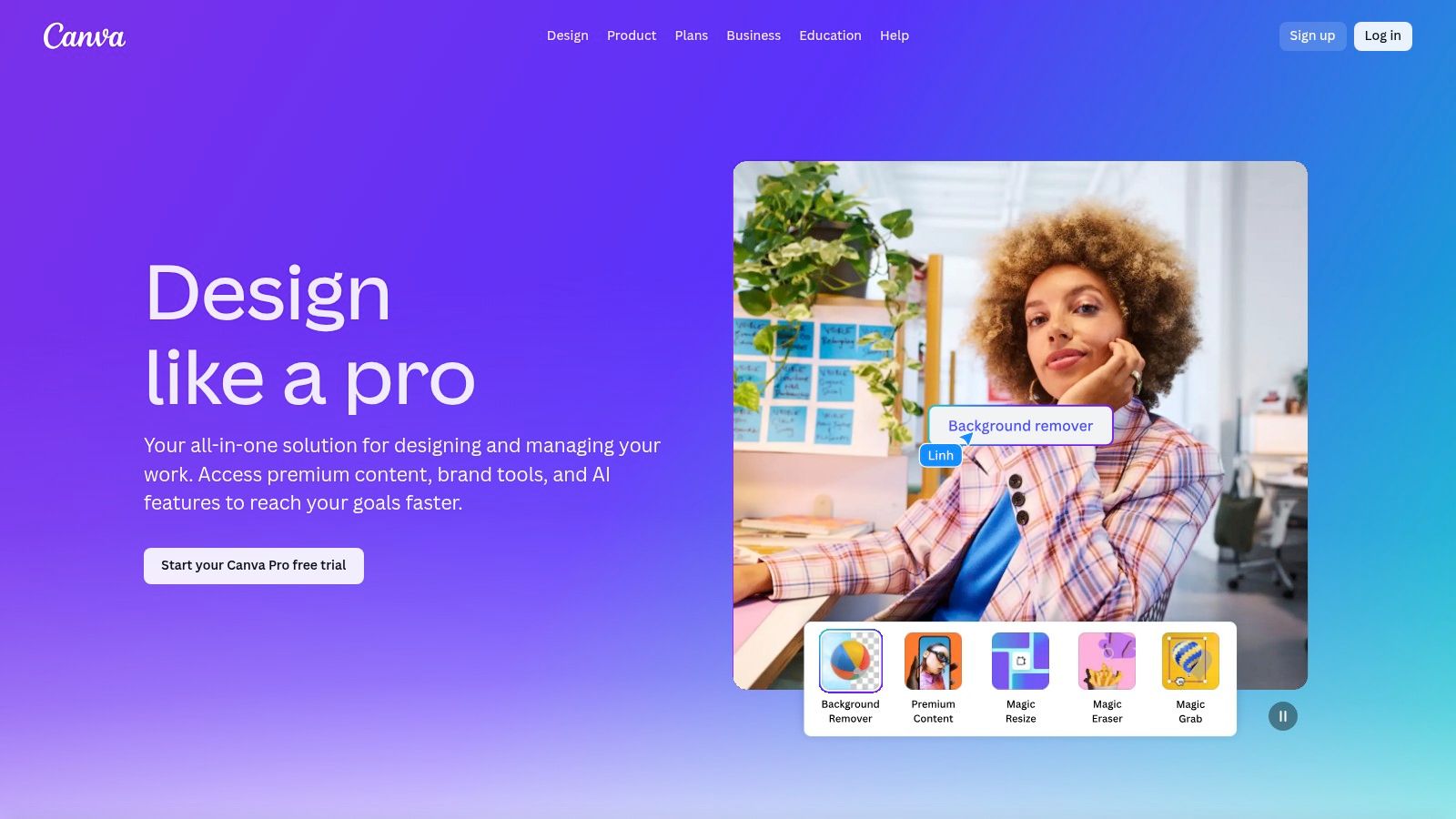
The platform is particularly effective for small businesses and social media managers who need to maintain a consistent brand presence without a dedicated designer. You can create everything from Instagram stories and LinkedIn banners to business cards and presentations. The free plan is incredibly robust, providing access to thousands of design types, a vast collection of free photos and graphics, and basic collaboration features. This focus on accessible design is central to creating strong visual content marketing, a strategy that can significantly boost engagement.
Key Features and User Experience
Canva’s interface is clean and straightforward, making it easy to find templates and customize them. The free tier includes:
Drag-and-Drop Editor: A simple, intuitive editor for arranging elements.
Large Asset Library: Access to over a million free photos, graphics, and fonts.
AI Tools: Limited free credits for features like Magic Write and Magic Media to assist with content creation.
Basic Brand Kit: Store one color palette, logo, and font set to maintain brand consistency.
Collaboration: Share design links with team members for viewing or editing.
Pros and Cons
Pros:
Extremely fast for creating professional-looking social media content.
Massive ecosystem of templates for virtually any use case.
Wide range of export options (PNG, JPG, PDF) and integrated printing services.
Cons:
Many of the best templates, assets, and advanced features (like background removal) are locked behind the Canva Pro subscription.
Team plan features and pricing can change, so it's wise to verify the current terms before committing.
2. Adobe Express
Adobe Express is the tech giant’s answer to user-friendly, template-driven design. As a direct competitor to Canva, it leverages the power and trustworthiness of the Adobe ecosystem into a streamlined tool for non-designers. Its permanently free plan is a strong contender for the title of best free graphic design software, especially for those creating social media posts, flyers, and quick video edits, as it provides a clean workflow backed by a trusted brand.
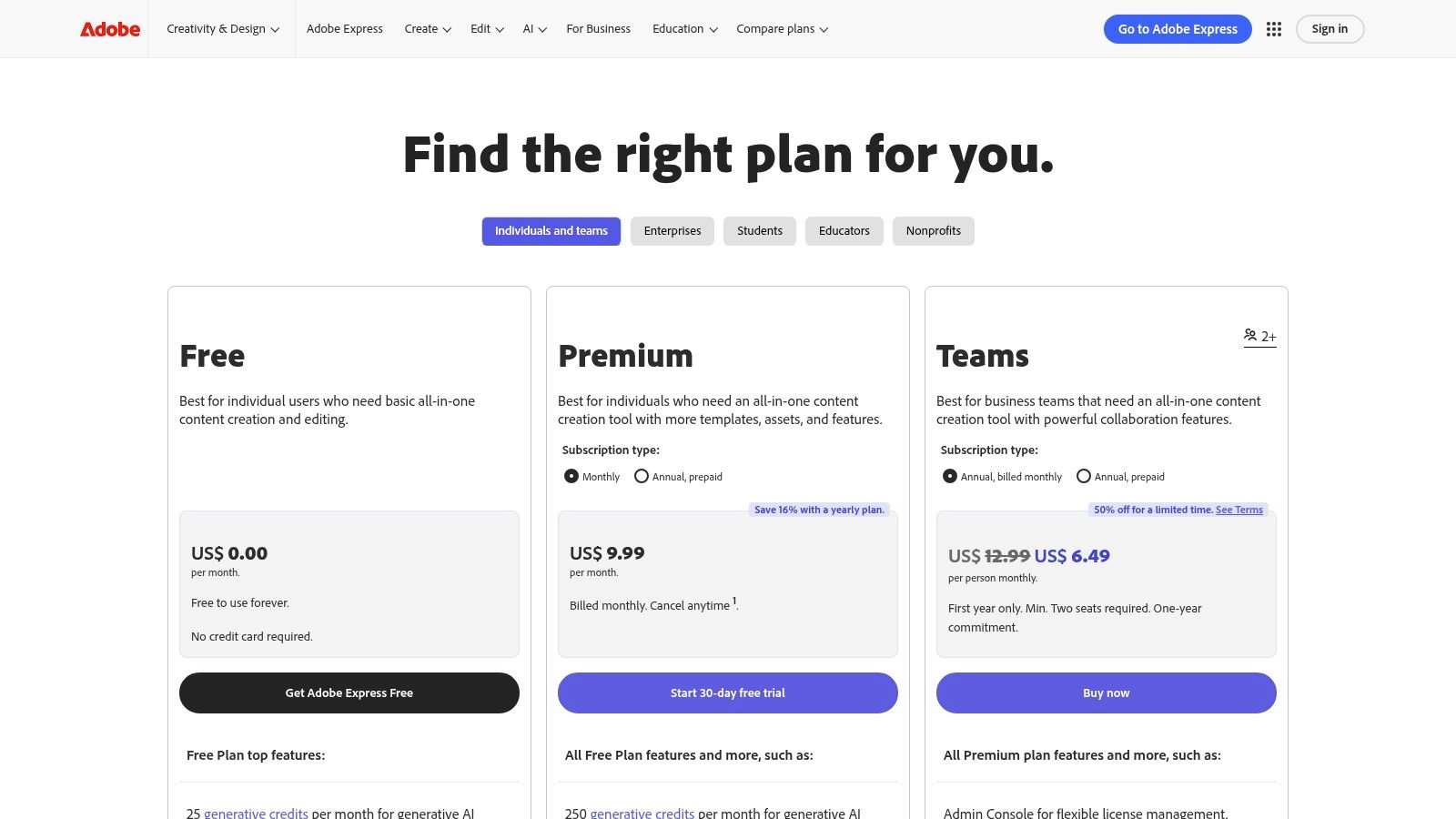
The platform shines for users who may already be familiar with Adobe products or who value cross-compatibility. Its ability to import native Adobe files like PSD and AI makes it a great supplementary tool for teams working with professional designers. The free offering is generous, granting access to a substantial library of templates and a selection of Adobe Stock assets, making it easier to produce a high volume of quality social media graphics. To explore how to best utilize these resources, you can learn more about social media graphics templates.
Key Features and User Experience
Adobe Express presents a polished and intuitive interface that simplifies the design process. The free plan includes:
All-in-One Editor: A unified editor for creating graphics, editing photos, and trimming videos.
Vast Template Library: Access to over 100,000 free, professionally designed templates.
Adobe Stock Integration: A curated collection of royalty-free Adobe Stock photos, videos, and music.
Generative AI: Limited monthly credits for AI features like Text to Image and Generative Fill.
File Compatibility: Import and edit Photoshop (PSD) and Illustrator (AI) files.
Pros and Cons
Pros:
Excellent integration with the broader Adobe Creative Cloud suite.
Clean, modern interface that is easy for beginners to navigate.
Generous free access to high-quality Adobe Stock assets and fonts.
Cons:
The most powerful features and premium assets are locked behind a paid subscription.
Generative AI credits on the free plan are limited and can be used up quickly.
3. Figma
Figma has become the industry standard for collaborative interface design, but its powerful, browser-based platform also makes it one of the best free graphic design software options available. It excels in real-time teamwork, vector editing, and prototyping, making it a favorite among UI/UX designers, product teams, and anyone needing a robust, cloud-native tool. Its generous "Starter" plan provides more than enough power for individuals and small teams to create sophisticated designs without a subscription.
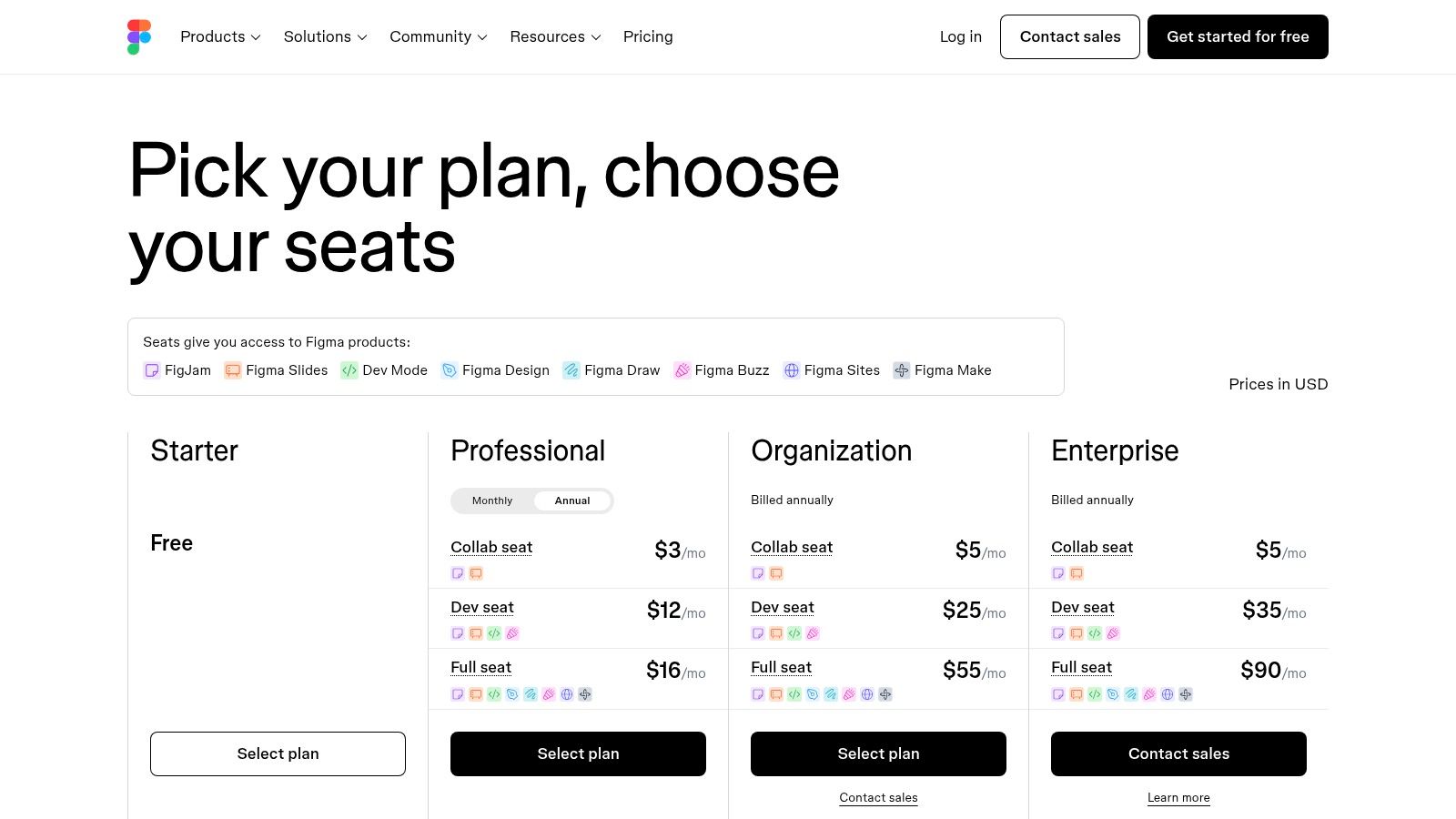
While its core strength lies in product design, Figma is versatile enough for creating social media graphics, presentation slides, and vector illustrations. The platform's component-based workflow is ideal for projects that require consistent visual elements, helping you master visual hierarchy in graphic design. Its real-time collaboration feature is unmatched, allowing multiple users to design, comment, and iterate on the same file simultaneously, which streamlines the feedback process for marketing agencies and startup teams.
Key Features and User Experience
Figma’s interface is professional and feature-rich, with a moderate learning curve for new users. The free Starter plan includes:
Vector-Based Editor: A powerful, browser-based editor for creating scalable vector graphics.
Real-Time Collaboration: Work with team members on the same design file simultaneously, with live cursors and commenting.
Unlimited Personal Files: Create and store as many individual design files as you need.
Plugins and Templates: Access a massive community library of plugins and templates to extend functionality and speed up workflows.
AI Tools: Includes daily credits for generative AI features on the free plan.
Pros and Cons
Pros:
Industry-leading real-time collaboration tools for team-based projects.
Extensive plugin ecosystem that adds powerful features like icon libraries and content generators.
Excellent for creating reusable components and maintaining design systems.
Cons:
Geared more toward UI/UX and product design than traditional print or social media graphics.
Advanced features like shared team libraries and extensive version history are locked behind paid plans.
4. Affinity (unified app)
The Affinity suite, now relaunched as a unified application, offers a powerful desktop alternative to Adobe’s ecosystem without the subscription commitment. By integrating pro-grade photo editing, vector design, and page layout tools into a single interface, it stands out as one of the best free graphic design software options for professionals and serious hobbyists. This move provides a robust, no-cost entry point for users seeking advanced creative capabilities.
Affinity is particularly appealing to designers accustomed to traditional desktop software who want to avoid recurring fees. Its comprehensive toolset allows for complex photo manipulation, intricate vector illustrations, and multi-page document creation all within one app. The free version delivers the core functionality needed for professional work, making it a viable and budget-friendly solution for creating everything from brand assets to print-ready marketing materials.
Key Features and User Experience
Affinity’s unified interface allows users to switch between different design modes seamlessly, creating a fluid and efficient workflow. The free model includes:
Unified Modes: Instantly switch between pixel, vector, and layout environments without closing the application.
Wide File Compatibility: Excellent support for importing and exporting files like PSD, AI, and PDF, easing the transition from other software.
Professional Toolsets: Access core features for non-destructive editing, advanced typography, and precise vector pen tools.
Optional AI Integrations: Potential for integrating AI-powered tools through a Canva account, which may require a Canva Pro subscription for full access.
Pros and Cons
Pros:
Professional-level performance and advanced tools with a $0 entry point.
Familiar interface and workflows for those transitioning from Adobe products.
One-time purchase model for full features, eliminating monthly subscriptions.
Cons:
The new "free forever" model is recent, so future changes or feature limitations are possible.
Some advanced AI extras and integrations may be tied to a separate Canva account or its Pro tier.
5. GIMP
GIMP (GNU Image Manipulation Program) is a powerhouse in the world of free graphic design software, offering an advanced, open-source alternative to Adobe Photoshop. It provides a robust, professional-grade toolset for raster graphics, making it ideal for detailed photo editing, image compositing, and original artwork creation. For users who need comprehensive control over their images without the subscription fees of premium software, GIMP stands as a mature and highly capable choice.
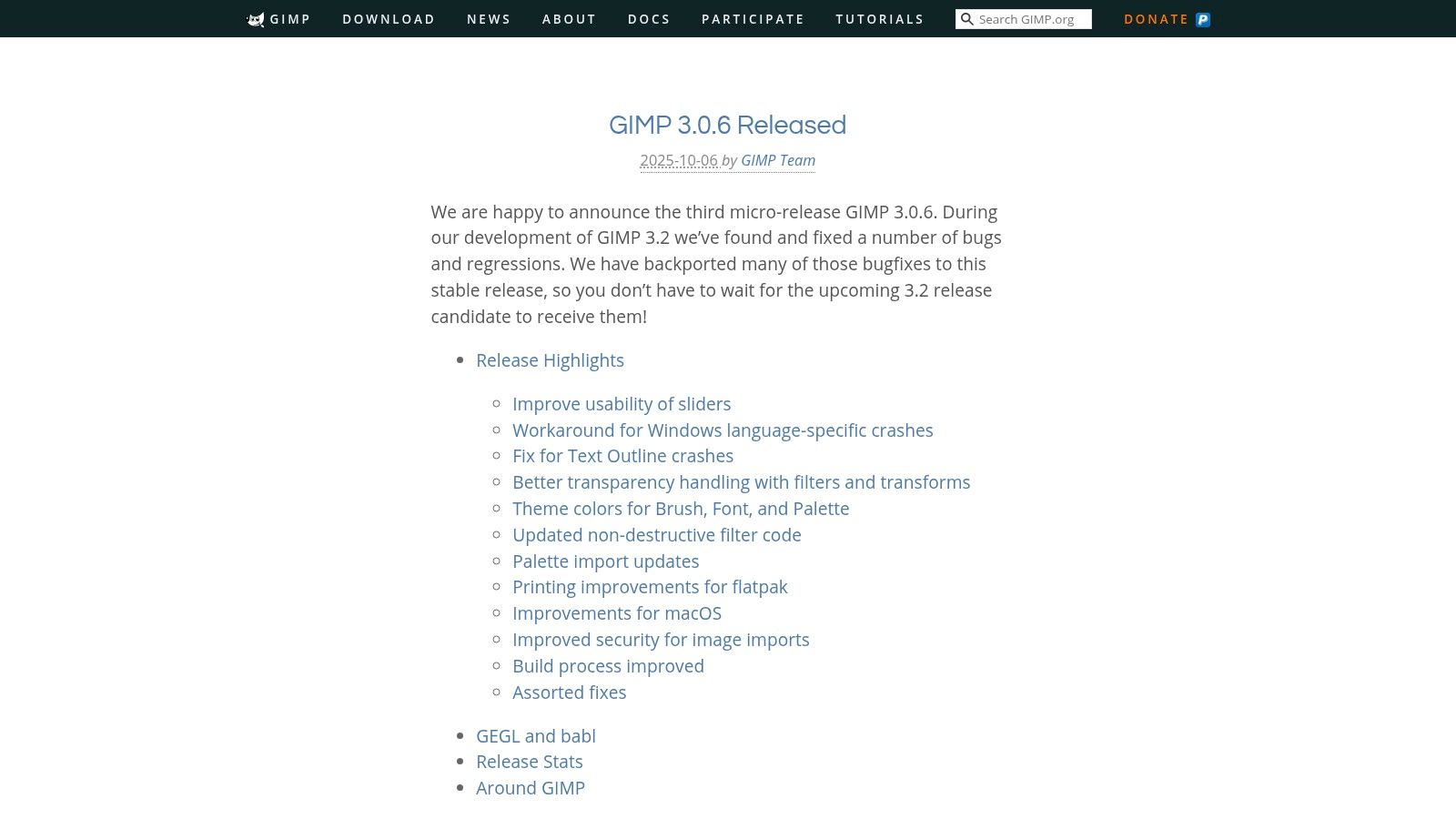
This platform is best suited for designers, photographers, and illustrators who are comfortable with a more technical interface and require sophisticated features. Unlike template-based tools, GIMP gives you a blank canvas and the power to manipulate images at a granular level, from complex color correction and retouching to creating intricate digital paintings. Its extensive customization options and a vibrant community-driven ecosystem of plugins allow users to tailor the software to their specific workflow, making it a versatile tool for demanding creative projects.
Key Features and User Experience
GIMP’s interface is more traditional than web-based editors but is highly functional for detailed work. The experience is centered on power and flexibility.
Advanced Editing Tools: A full suite of professional tools, including layers, masks, paths, and advanced color manipulation.
Extensive Customization: The interface, tools, and overall workflow can be customized to suit individual preferences.
Broad Plugin Ecosystem: Expand GIMP's functionality with a vast library of third-party plugins and scripts.
Cross-Platform Availability: Fully free and open-source, with installers available for Windows, macOS, and GNU/Linux.
Active Development: Regular updates, including the recent 3.x releases, continue to modernize the UI and add new features.
Pros and Cons
Pros:
Completely free with no hidden costs or subscriptions, supported by community development.
A mature and powerful toolset suitable for professional-level photo editing and graphic production.
High degree of customization and extensibility through plugins.
Cons:
The user interface and workflows can feel technical and have a steeper learning curve for beginners.
Lacks some native non-destructive editing features found in competitors, like Photoshop's smart objects.
Website: https://www.gimp.org/news/2025/10/06/gimp-3-0-6-released/?utm_source=openai
6. Inkscape
For those seeking a powerful, professional-grade vector graphics editor without the subscription fees of Adobe Illustrator, Inkscape is the definitive open-source solution. As a completely free tool, it provides a surprisingly robust set of features for creating complex illustrations, logos, icons, diagrams, and print-ready designs. It is one of the best free graphic design software options for anyone who needs to work natively with Scalable Vector Graphics (SVG) files.
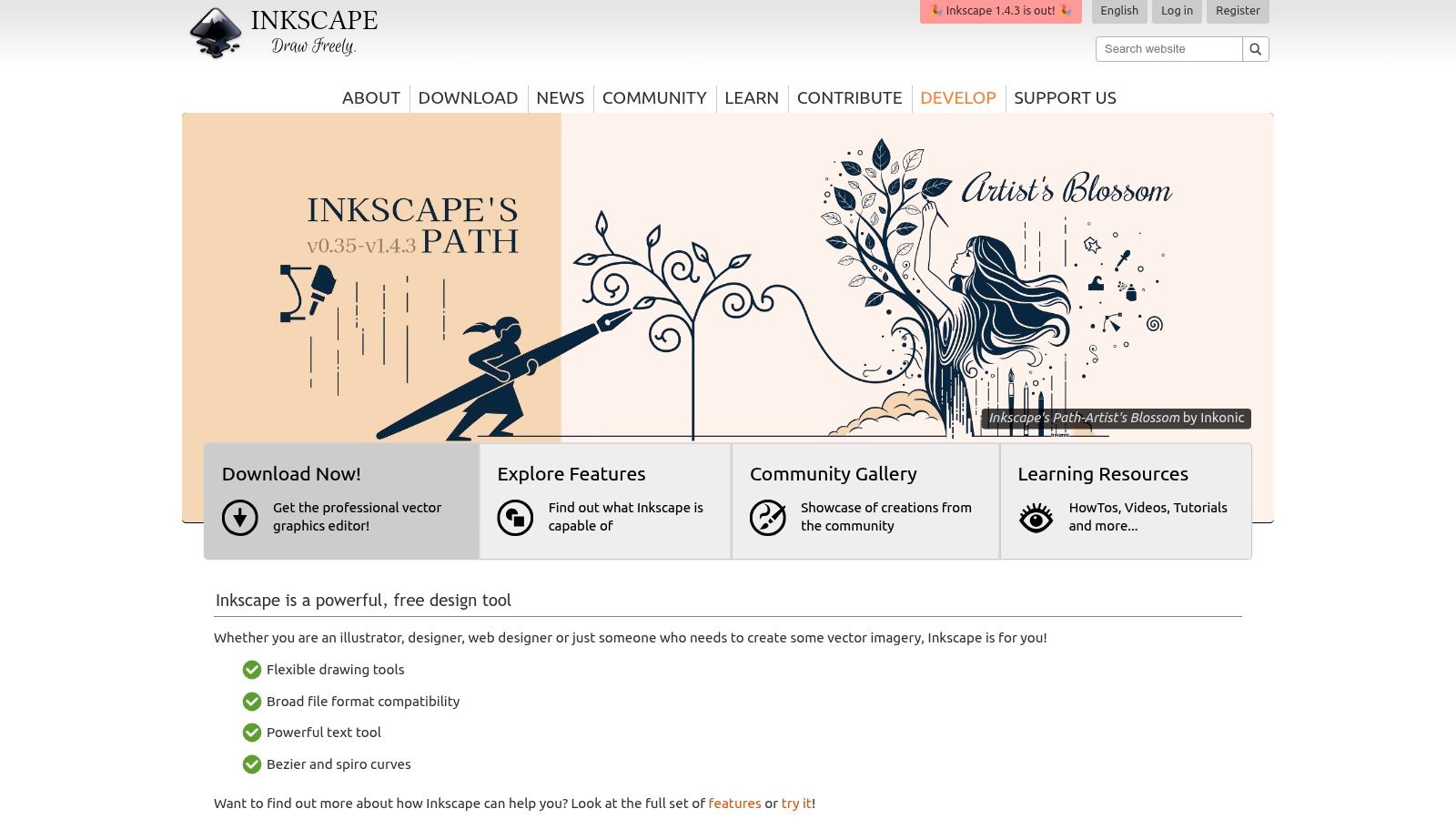
Unlike web-based tools focused on templates, Inkscape is a full-featured desktop application designed for creating vector art from scratch. It is ideal for illustrators, designers, and hobbyists who require precise control over paths, nodes, and shapes. The platform’s cross-platform availability (Windows, macOS, and Linux) and its dedicated community make it an accessible and well-supported choice for serious vector work.
Key Features and User Experience
Inkscape's interface is more technical than template-based editors, but it is packed with professional tools. Key features include:
Advanced Vector Tools: Comprehensive drawing, shape, text, and path editing tools, including Bezier curves and boolean operations.
Broad File Compatibility: Native support for the SVG format, with reliable import and export options for AI, EPS, PDF, and PNG.
Object Manipulation: Powerful controls for transformations, grouping, layering, and alignment to manage complex compositions.
Creative Effects: Includes path-based text, pattern fills, and a range of filters and extensions to enhance designs.
Cross-Platform: Fully functional on Windows, macOS, and Linux operating systems.
Pros and Cons
Pros:
Professional-grade vector editing capabilities at zero cost.
Open-source and supported by an active global community.
Excellent SVG standards compliance and broad file format support.
Cons:
The user interface has a steeper learning curve compared to commercial alternatives like Adobe Illustrator.
Performance can slow down when working with extremely complex files containing many nodes and layers.
7. Krita
Krita is a professional-grade, free, and open-source digital painting program built by artists for artists. It stands out as one of the best free graphic design software options specifically for illustrators, comic book artists, and concept artists. Unlike general-purpose design tools, Krita is engineered for creating artwork from scratch, providing an experience that rivals many premium digital painting applications.
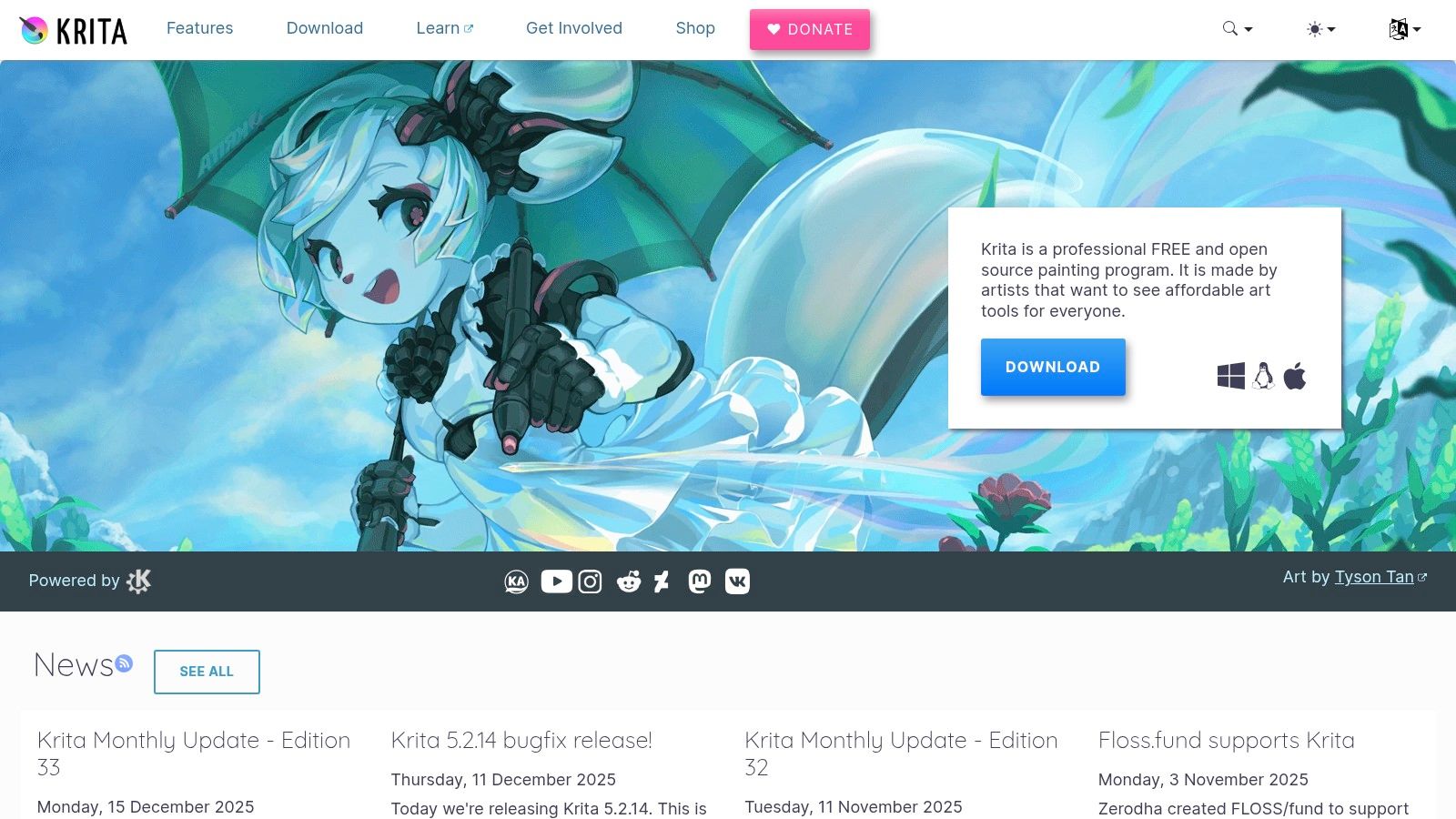
The platform is especially powerful for users who want complete control over their creative process, from sketching initial ideas to producing detailed, painterly illustrations. Its primary strength lies in its sophisticated brush engine, which offers extensive customization and a natural painting feel. Krita is entirely free to download and use on all major desktop operating systems, with development supported by community donations and optional paid versions on various app stores.
Key Features and User Experience
Krita’s interface is feature-rich yet organized, making its advanced tools accessible to both seasoned artists and dedicated beginners. Key free features include:
Advanced Brush Engine: Over 100 professional-quality, preloaded brushes and nine unique brush engines for ultimate customization.
Animation Tools: A full animation toolset with an onion skinning display, timeline, and frame-by-frame raster animation capabilities.
Layer Management: A comprehensive layer system, including filter layers, vector layers, and group layers for non-destructive editing.
Wrap-around Mode: A seamless texture and pattern creation tool that allows artists to paint on a canvas that automatically tiles in real-time.
Resource Manager: Easily import and manage brush and texture packs from other artists to expand your toolkit.
Pros and Cons
Pros:
Exceptional brush engine offers a highly responsive and customizable painting experience.
Completely free and open-source with no features locked behind a paywall.
Includes robust animation and vector tools not commonly found in free painting software.
Cons:
The interface can be complex and overwhelming for absolute beginners.
Primarily focused on illustration and digital painting, making it less suitable for social media layouts or typography-heavy graphic design.
8. Photopea
Photopea is a powerful, web-based photo and graphics editor that brings the functionality of professional desktop software, like Adobe Photoshop, directly into your browser. It stands out for its comprehensive toolset and broad file compatibility, making it a fantastic choice for designers, photographers, and hobbyists who need advanced editing capabilities without software installation or subscription fees. Its ability to handle complex file types like PSD, AI, and SVG makes it one of the best free graphic design software options for intricate projects.
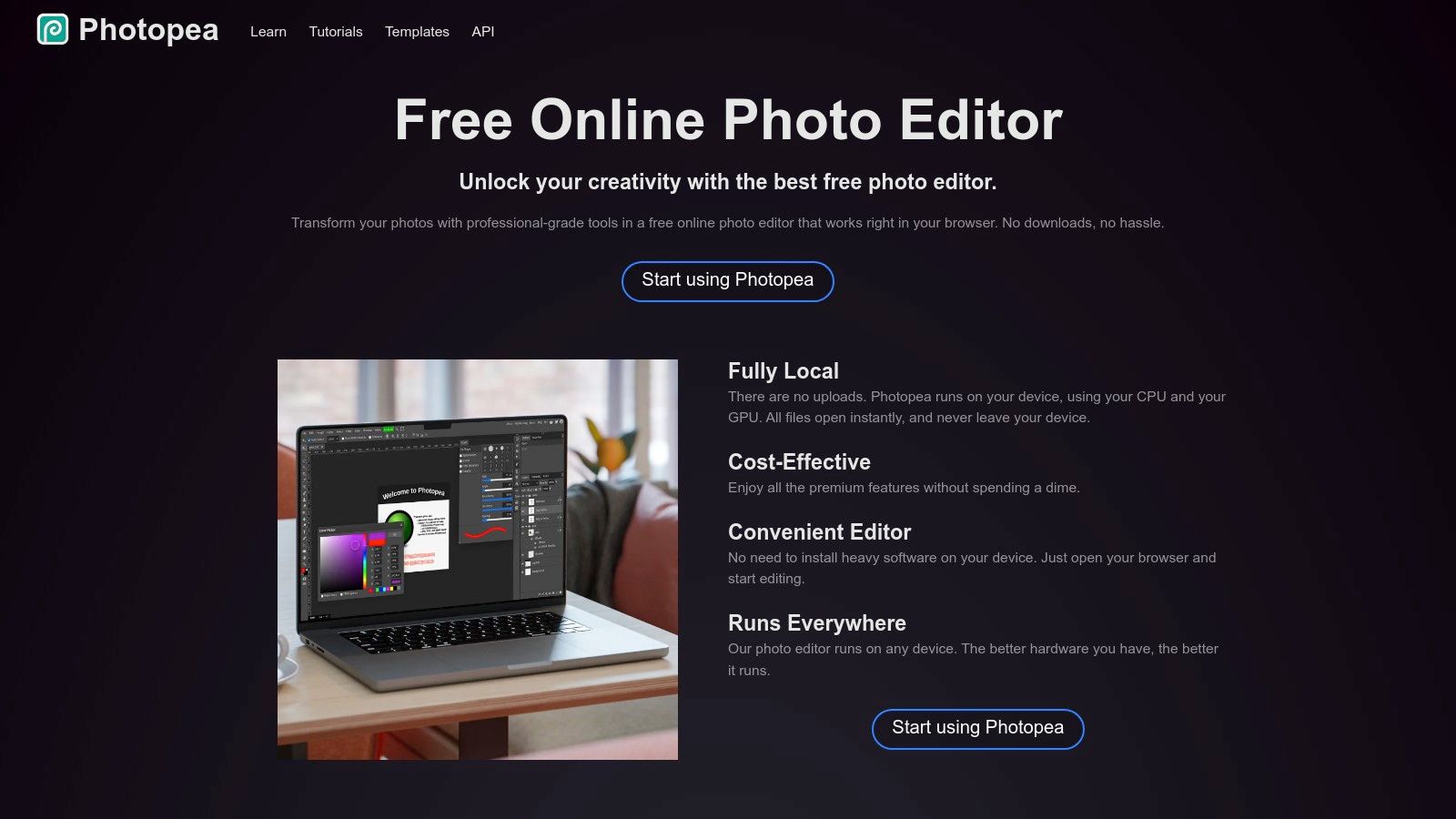
This platform is particularly useful for users already familiar with Photoshop's interface, as it provides a near-identical workflow for layers, masks, filters, and vector tools. Whether you need to make a quick adjustment to a PSD file on a shared computer or perform detailed photo retouching on the go, Photopea offers a remarkably robust solution. The free version is fully functional, supported by ads, allowing anyone to access professional-grade tools from any device with an internet connection.
Key Features and User Experience
Photopea’s interface is instantly recognizable to anyone who has used advanced image editors, offering a familiar layout and powerful tools. The free version includes:
Advanced Editing Tools: Full support for layers, layer masks, blend modes, adjustment layers, filters, and vector paths.
Extensive Format Support: Open and save files in PSD (Photoshop), XCF (GIMP), Sketch, CDR (CorelDRAW), and other formats including SVG, PDF, and RAW photos.
Browser-Based Convenience: Runs entirely in your web browser, meaning no installation is required and your work can be accessed from any computer.
Familiar Interface: The layout, tools, and shortcuts are heavily inspired by Adobe Photoshop, ensuring a minimal learning curve for experienced users.
Pros and Cons
Pros:
Incredibly convenient for editing complex files on any device without installing software.
Familiar user interface makes it easy for Photoshop users to transition.
Supports a massive range of file formats that other free tools do not.
Cons:
The free version is ad-supported, which may be distracting for some users.
Performance can be slower with very large or complex files compared to a dedicated desktop application.
Website: https://www.photopea.com/
9. Pixlr
Pixlr offers a powerful suite of browser-based photo editors and design tools, positioning itself as a strong, lightweight alternative to more complex software. It splits its offering into Pixlr E (Advanced Editor) and Pixlr X (Quick & Easy Design), catering to both detailed image manipulation and fast social media graphic creation. This makes it an excellent choice for users who need a tool that bridges the gap between simple template editors and full-featured photo editing programs.
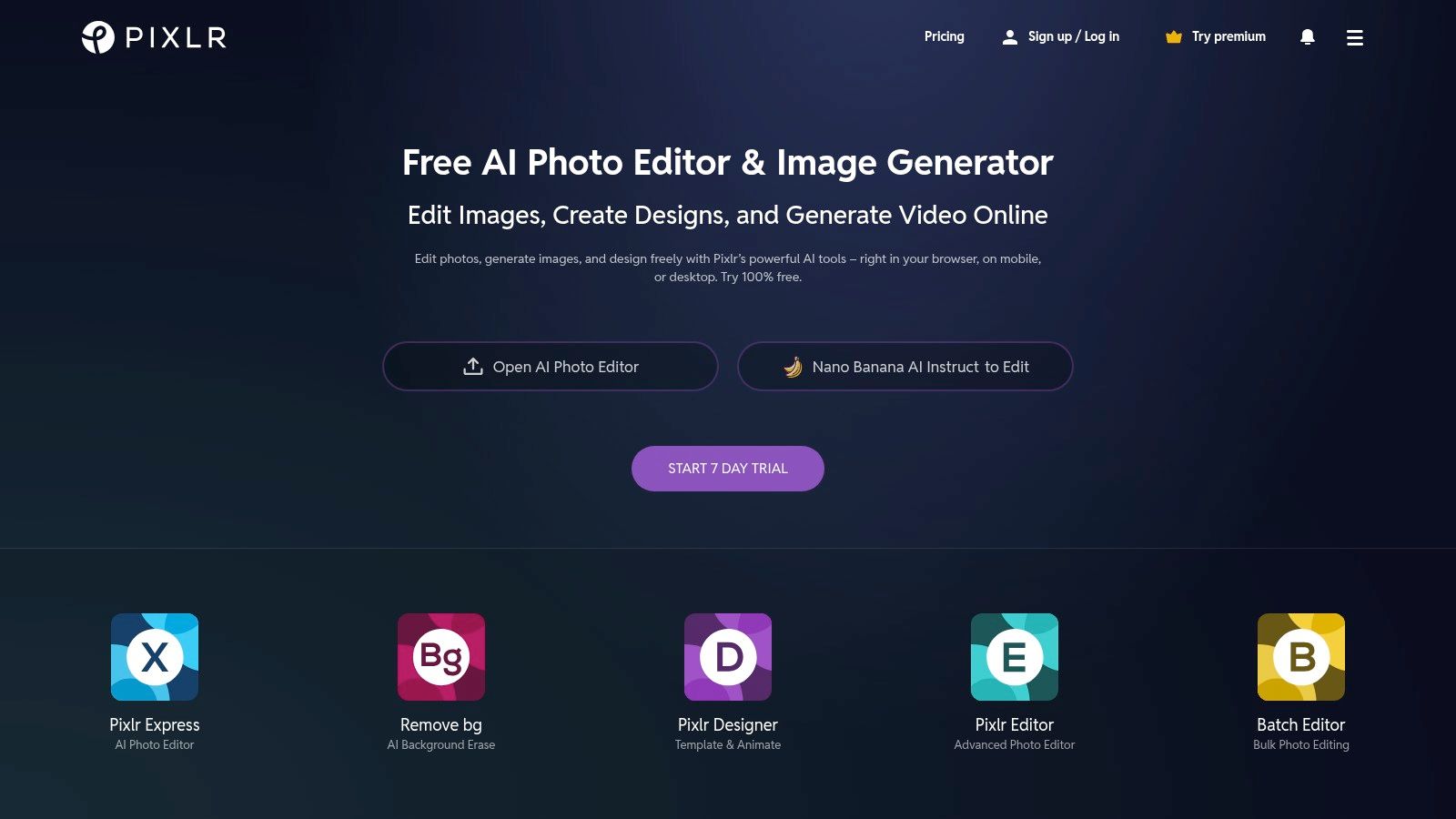
The platform is particularly useful for bloggers, content creators, and small business owners who frequently need to crop, resize, or touch up photos without investing in expensive software. Pixlr’s free version provides robust functionality, including layers, effects, and a variety of adjustment tools. As one of the best free graphic design software options available in-browser, it delivers impressive performance for quick edits and creative compositions across web, desktop, and mobile devices.
Key Features and User Experience
Pixlr's dual-editor approach allows users to select the interface that best matches their task. The free tier includes:
Pixlr E & Pixlr X: Choose between an advanced, layer-based editor (E) or a simplified, template-driven one (X).
AI-Powered Tools: Access to a variety of AI features like background removal, object removal, and AI image generation.
Template Library: A solid collection of pre-made templates for social media posts, banners, and other common formats.
Comprehensive Editing Tools: Includes layers, filters, effects, and drawing tools for detailed creative work.
Cross-Platform Access: Use the editor directly in your web browser or download the desktop and mobile apps.
Pros and Cons
Pros:
No installation required for the web version, making it fast and accessible.
Powerful photo editing capabilities that are rare in free, browser-based tools.
Offers a free education upgrade program for schools and students.
Cons:
The free version is ad-supported, which can be distracting.
Many of the more advanced AI tools, templates, and assets are locked behind a premium subscription.
The user interface occasionally pushes upgrades to its paid plans.
10. VistaCreate (formerly Crello)
VistaCreate, formerly known as Crello, is a powerful and accessible design platform that excels in template-driven creation. It's a strong contender for users who need to produce high-quality social media posts, ads, and simple animated content quickly. By offering a generous free plan, VistaCreate has established itself as one of the best free graphic design software options, especially for small businesses and creators focused on consistency and speed.
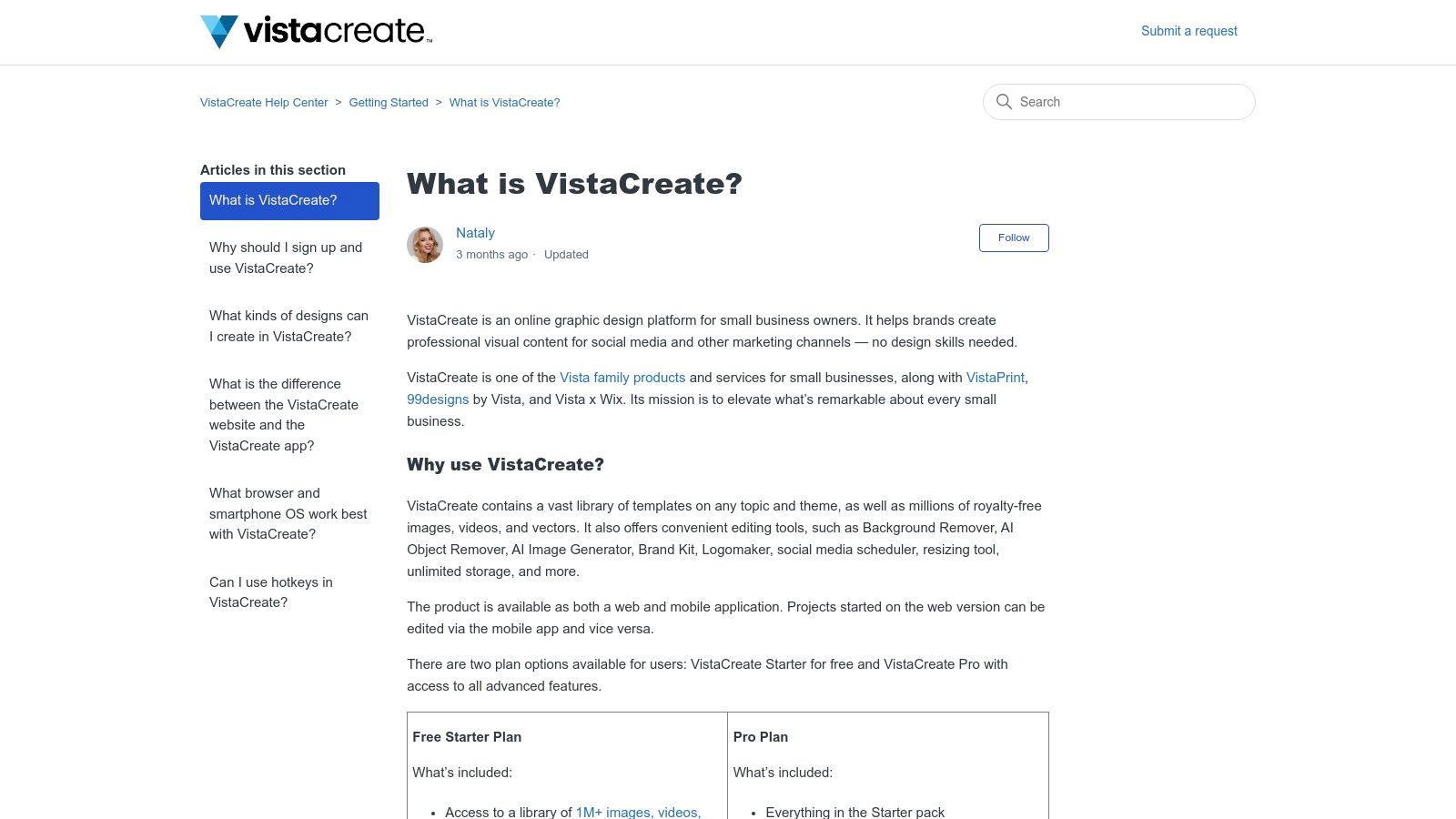
The platform shines with its massive library of professionally designed templates and free assets, making it easy to start a project without a blank canvas. Its free Starter plan is notably robust, providing features that rivals often place behind a paywall, such as a basic Brand Kit and a content scheduler. This focus on providing essential branding tools for free makes it an excellent choice for startups and marketers aiming to maintain a cohesive visual identity across multiple channels without an initial investment.
Key Features and User Experience
VistaCreate's interface is clean and intuitive, allowing for quick navigation and design customization. The free Starter plan includes:
Vast Free Library: Access over 100,000 free design templates and more than 1 million royalty-free creative assets.
Brand Kit: Store one brand's logos, color palettes, and fonts to ensure on-brand designs every time.
Animation and Video Tools: Create simple animated graphics and short videos using easy-to-use tools.
Direct Social Posting: Includes a basic scheduler to plan and post content directly to platforms like Facebook and Instagram.
Background Removal: A limited number of free background removal credits are available to test this premium feature.
Pros and Cons
Pros:
Generous free plan with a Brand Kit and scheduler included.
Strong focus on social media and ad templates.
Simple animation and video editing capabilities are perfect for engaging content.
Cons:
Essential features like resizing designs and unlimited background removal require a Pro subscription.
Collaboration and team management features are very limited on the free tier.
11. Snappa
Snappa positions itself as the fastest way for non-designers to create online graphics. It's a web-based tool that prioritizes speed and simplicity, making it an excellent choice for marketers and small business owners who need to produce clean, professional-looking social media assets without a steep learning curve. The platform strips away complex features to deliver an incredibly straightforward and efficient design experience.
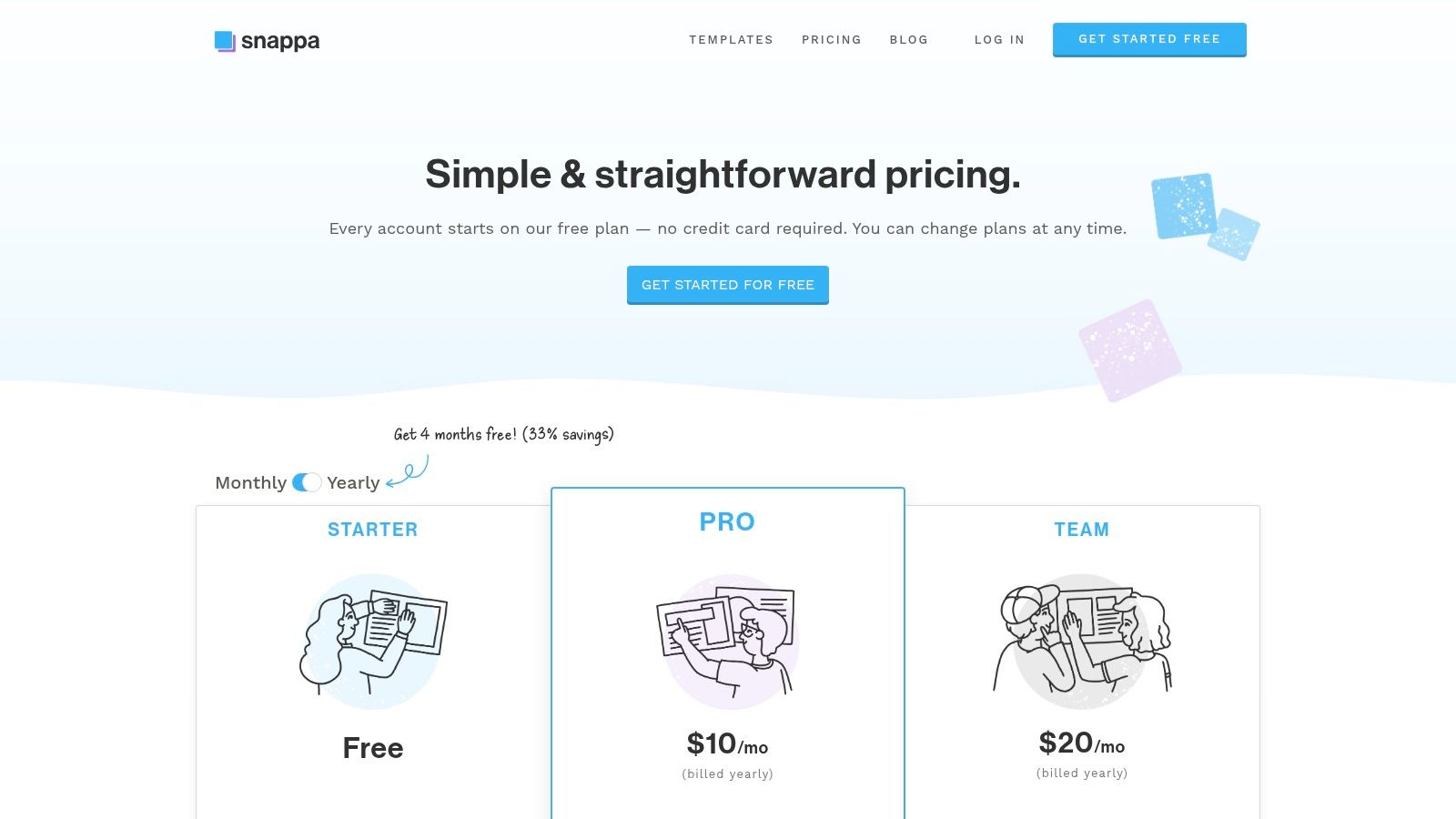
The interface is clean, and the onboarding process is exceptionally smooth, allowing new users to start creating immediately. While its free tier is more limited than some competitors, it provides full access to its vast photo and template library, making it a powerful contender for those who only need to create a few graphics per month. This focus on ease of use makes it one of the best free graphic design software options for anyone feeling overwhelmed by more feature-rich platforms.
Key Features and User Experience
Snappa’s user experience is designed for maximum efficiency. The free plan provides access to its core creation tools, though downloads are limited. Key features include:
Massive Asset Library: Access to over 5,000,000+ HD photos and graphics.
Pre-made Templates: Over 6,000 templates optimized for social media, blogs, and ads.
Simple Interface: A clean, uncluttered editor that is easy to navigate.
Social Media Integrations: Connect accounts to share graphics (paid feature).
Background Remover: Instantly remove image backgrounds with one click (paid feature).
Pros and Cons
Pros:
Extremely fast and easy to learn for beginners.
Full access to the entire photo and graphics library on the free plan.
Clean, modern templates that are simple to customize.
Cons:
The free plan is strictly limited to three downloads per month.
Lacks the advanced features and customization options of more robust tools.
12. Microsoft Designer
Microsoft Designer is a powerful, AI-assisted graphic design tool that excels at generating unique visuals from simple text prompts. Positioned within the Microsoft 365 ecosystem, it’s an excellent choice for users who want to create social media posts, invitations, and digital postcards with the help of intelligent automation. Its strength lies in its ability to quickly produce multiple design variations, making it one of the best free graphic design software options for brainstorming and rapid creation.
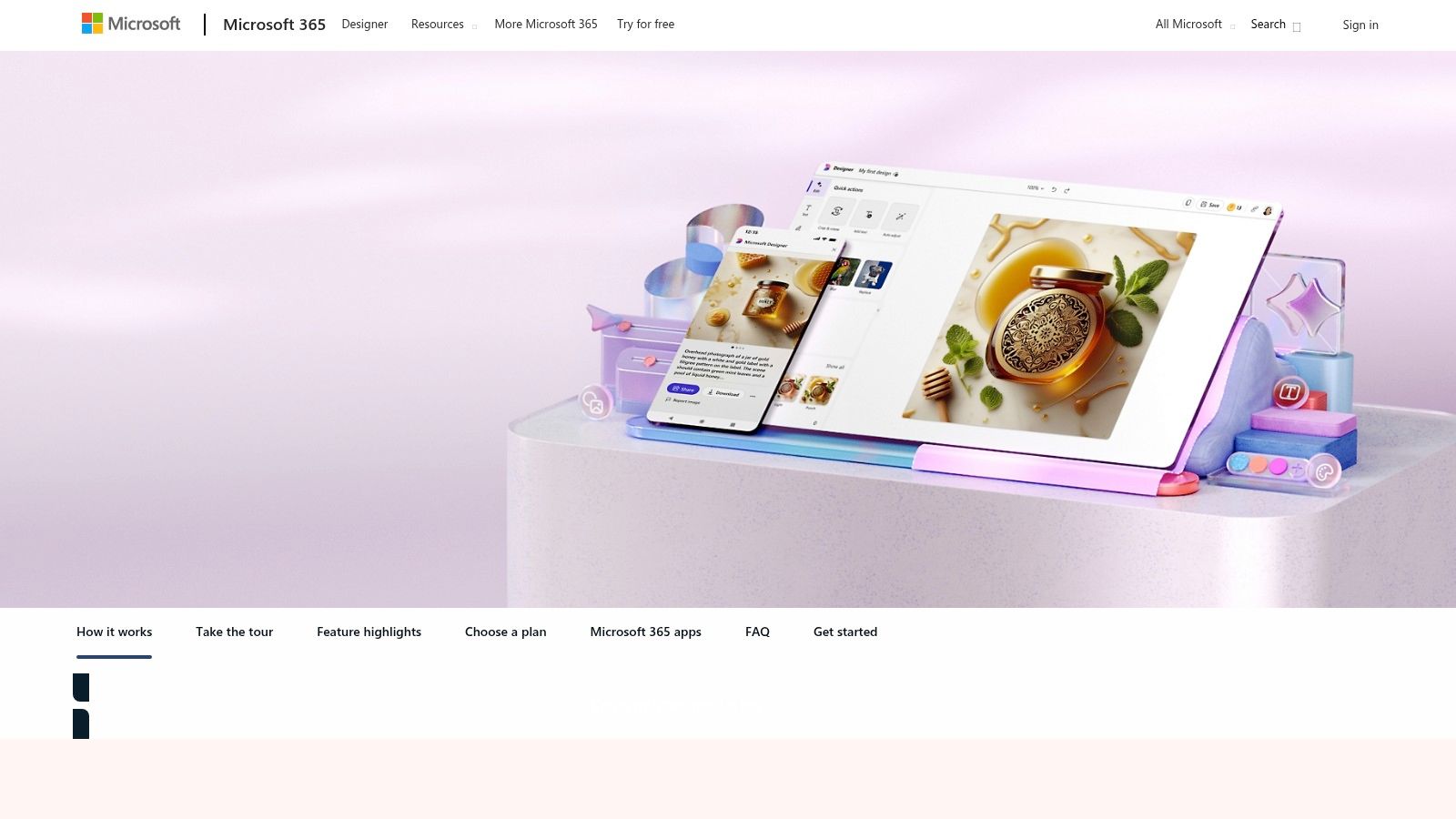
The platform is particularly useful for individuals and small teams already invested in Microsoft's software suite. It streamlines the creation of marketing materials by leveraging DALL-E 3 for high-quality image generation and offering smart layout suggestions. While the free tier provides generous access, more advanced features and higher usage limits are integrated into Microsoft 365 subscriptions. This AI-first approach prioritizes speed and ease over the granular manual control found in traditional design tools.
Key Features and User Experience
Microsoft Designer’s interface is minimalist and prompt-driven, guiding users toward AI-powered creation. The free version offers:
AI-Powered Design: Generates design suggestions and layouts based on your text descriptions.
Text-to-Image Generation: Utilizes DALL-E 3 to create custom images and illustrations from prompts.
AI Photo Editing: Includes tools like background removal, blur background, and an "expand image" feature.
Design Templates: Provides a starting point for common formats like Instagram posts, invitations, and digital stickers.
Free Credits: Offers a daily number of "boosts" for faster image generation.
Pros and Cons
Pros:
Excellent AI tooling with sensible defaults for quick, high-quality results.
Seamless integration with Microsoft 365 apps like Clipchamp and PowerPoint.
Intuitive for beginners who prefer prompt-based creation over manual design.
Cons:
Higher usage limits and premium features are tied to paid Microsoft 365 subscriptions.
Less emphasis on deep manual control, which may limit professional designers.
Top 12 Free Graphic Design Tools — Feature Comparison
| Tool | Core features | UX / Quality ★ | Price / Value 💰 | Target audience 👥 | Unique selling point ✨🏆 |
|---|---|---|---|---|---|
| Canva | Drag‑drop editor, huge templates & assets, basic AI helpers | ★★★★★ | 💰 Freemium → Pro for advanced assets | 👥 Small biz, creators, marketers | ✨ Massive template ecosystem; 🏆 fastest for polished social content |
| Adobe Express | Template‑driven design, photo/video tools, Adobe asset library | ★★★★ | 💰 Freemium + Premium features | 👥 Non‑designers, Adobe users | ✨ Adobe file import + stock assets; 🏆 trusted Adobe workflow |
| Figma | Browser UI/prototyping, real‑time collaboration, plugins | ★★★★ | 💰 Freemium → paid seats for teams | 👥 Product teams, agencies, designers | ✨ Live collaboration & plugin ecosystem; 🏆 team design workflow |
| Affinity (unified) | Pixel/Vector/Layout unified app, wide file compatibility | ★★★★ | 💰 Free entry (desktop) | 👥 Pro designers, Adobe switchers | ✨ Pro desktop tools without subscription; 🏆 strong offline performance |
| GIMP | Advanced raster editing, layers/compositing, plugins | ★★★ | 💰 Completely free/open‑source | 👥 Budget‑conscious pros, hobbyists | ✨ Powerful Photoshop‑style tools at no cost |
| Inkscape | SVG‑native vector editor, path/text/node tools, broad export | ★★★ | 💰 Free/open‑source | 👥 Logo designers, illustrators | ✨ Professional vector editing (SVG first) |
| Krita | Brush engine, animation tools, painting workflow | ★★★★ | 💰 Free (donation/store builds) | 👥 Digital painters, illustrators | ✨ Best brush/painting feel; 🏆 ideal for concept art & comics |
| Photopea | Browser PSD editor with layer/mask support, many formats | ★★★★ | 💰 Freemium (ads) / paid to remove ads | 👥 Photoshop users needing browser access | ✨ PSD‑compatible in‑browser editor; 🏆 no install required |
| Pixlr | Web/mobile photo editor, AI background removal, templates | ★★★ | 💰 Freemium with ads → paid tiers | 👥 Casual users, quick social edits | ✨ Fast web edits + AI tools for quick touchups |
| VistaCreate | Template‑first social/video templates, Brand Kit basics | ★★★★ | 💰 Freemium → Pro features gated | 👥 Small teams, social marketers | ✨ Large template + animation library for easy on‑brand posts |
| Snappa | Simple social graphics, templates, stock photos | ★★★ | 💰 Freemium (limited downloads) | 👥 Marketers needing quick assets | ✨ Fast onboarding and clear pricing for simple graphics |
| Microsoft Designer | AI text→image, photo edits, MS365 integration | ★★★★ | 💰 Freemium + MS365 enhancements | 👥 Microsoft 365 users, marketers | ✨ Strong AI defaults + ecosystem integration; 🏆 AI‑first social creation |
Beyond Manual Design: Automating Your Visual Content Strategy
We've explored a powerful lineup of the best free graphic design software available today, from the template-driven ease of Canva and Adobe Express to the professional-grade vector capabilities of Inkscape and the comprehensive raster editing of GIMP. Each tool offers a unique pathway to creating stunning visuals without a significant financial investment. Figma stands out for collaborative interface design, Photopea provides a browser-based powerhouse for complex photo editing, and tools like Krita and Pixlr offer specialized features for digital painting and quick, AI-assisted edits, respectively.
The core takeaway is that the "best" tool is entirely dependent on your specific needs, skills, and goals. There is no one-size-fits-all solution. A social media manager creating daily posts will find immense value in the vast template libraries of VistaCreate or Snappa. In contrast, a startup founder bootstrapping their brand identity might lean on Inkscape for logo design and vector assets that can scale infinitely. The key is to match the tool to the task at hand.
From Manual Effort to Strategic Output
Choosing your software is just the first step. The true challenge for small businesses, creators, and marketing agencies isn't just accessing design tools; it's the consistent and strategic application of them. The manual process, even with the most intuitive free software, is a significant time commitment. It involves a multi-step workflow:
Ideation: What should you post about?
Research: Gathering facts, statistics, or insights.
Copywriting: Crafting compelling text for the graphic.
Design: Choosing layouts, fonts, colors, and imagery.
Execution: Assembling all the elements into a final visual asset.
This cycle repeats for every single piece of content. When your goal is to build authority and maintain a consistent presence, this manual workload can quickly become a bottleneck, pulling you away from other critical business activities. While the tools we've reviewed empower you to create, they don't solve the underlying challenge of limited time and resources. For your visual content to be effective, it needs to be part of a larger plan. To truly leverage free graphic design software, understanding the broader context of your visual output is key; this article delves into mastering social media and content strategy to help you build a cohesive plan.
The Automation Advantage: A New Approach
This is where a different paradigm, content automation, presents a compelling alternative. For those whose primary constraint is time, not capability, an automated approach can be transformative. Consider a tool like Postbae, which is not another manual design platform but an AI-powered content creation agent. It operates on a fundamentally different principle: instead of providing you with a blank canvas, its AI agent works autonomously to deliver finished visual posts.
Postbae is designed specifically for creating the authority-building content that is often the most difficult and time-consuming to produce. It handles the entire workflow—from research and ideation to writing and final graphic design—generating industry-specific multi-slide carousels, infographics, and educational visual posts that are ready to publish. This shifts your role from a hands-on creator to a strategic editor. You still retain complete creative control, with the ability to fully edit and customize every generated post, but the heavy lifting is done for you without requiring a single prompt.
Ultimately, the path you choose depends on your most valuable resource. If you have the time to invest in learning and creating, the fantastic array of free graphic design software we've covered provides everything you need. However, if your time is better spent on strategy, client relationships, or product development, embracing automation is the most strategic move. It allows you to achieve a consistent, professional social media presence for an affordable price, ensuring your visual content strategy works for your business, not the other way around.
Tired of the manual design grind? If your biggest challenge isn't finding a tool but finding the time, Postbae offers a new way forward. Let our AI agent autonomously create professional, industry-specific visual posts for you, so you can focus on growing your business. Try Postbae today and transform your content creation from a daily task into an automated asset.